Archive Settings
Last updated: November 4, 2026
Overview
The Communications Archive page in Organization Settings is where admins set up random sampling and see the firm's archive queues. Random sampling pulls a set percentage of a user group's communications for review, so supervision covers a fair cross-section of activity, not only what gets flagged. Archive queues are saved filter sets that reviewers can open in the archive.
Step 1: Open Organization Settings
Click your name in the top bar (1), then click Organization Settings (2).
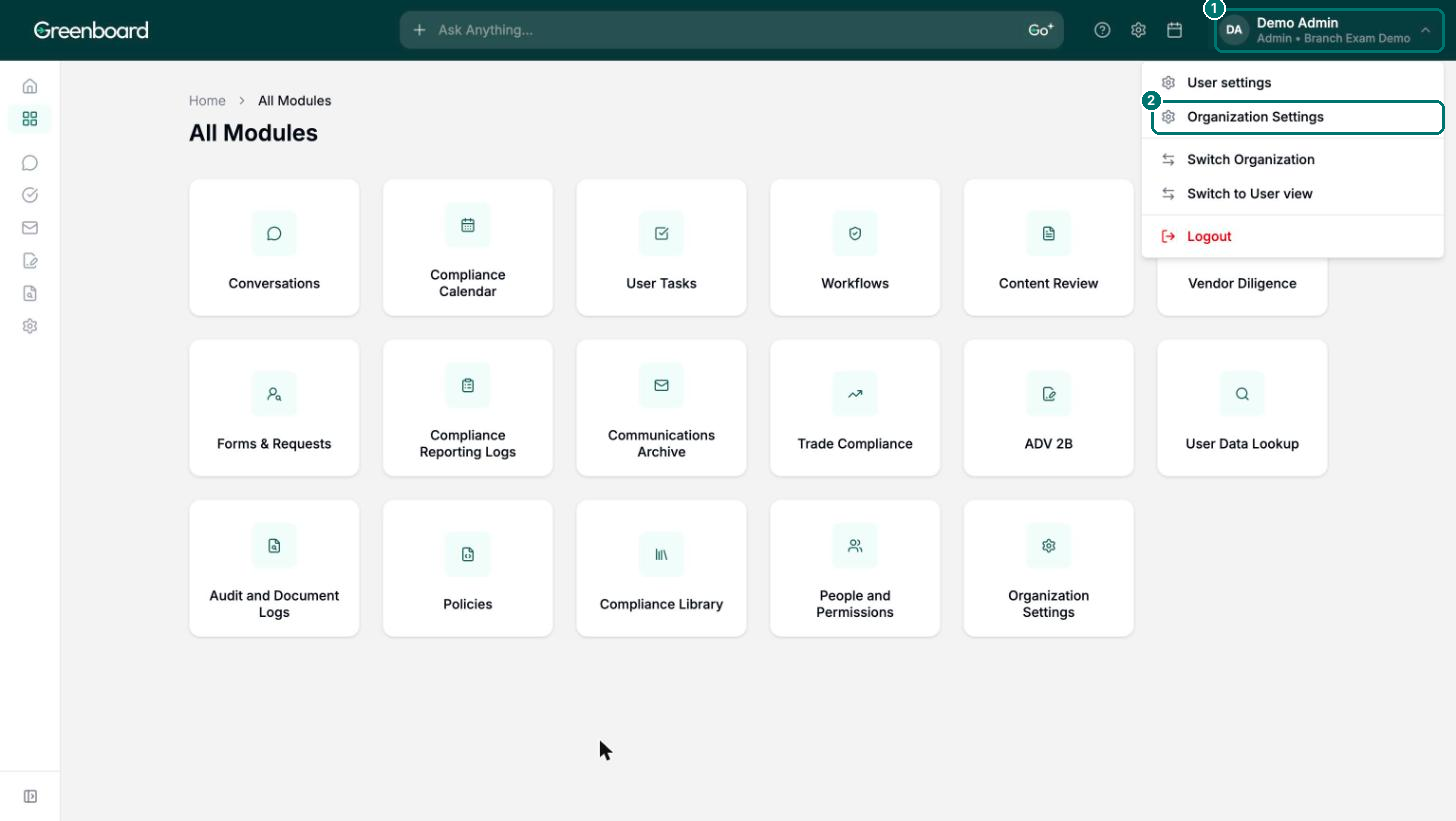
Screenshot 1: The account menu with Organization Settings.
Step 2: Open the Communications Archive settings
In the settings menu, scroll to Modules (1) and click Communications Archive (2). The page opens on the Random Sampling tab. You can also get here from the archive itself: in Communications Archive, open Options and choose Archive Random Sampling.
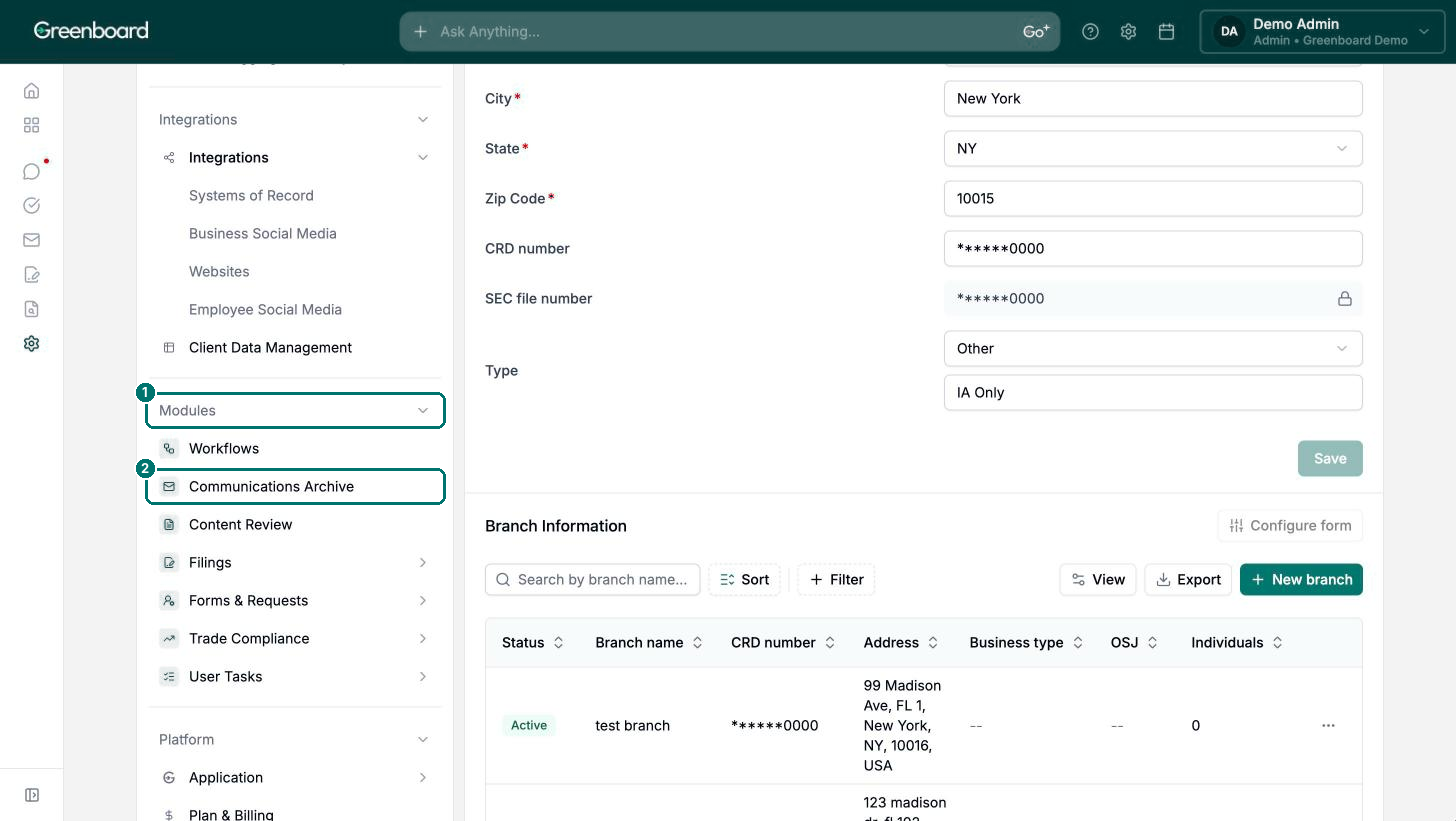
Screenshot 2: The settings menu with Communications Archive under Modules.
Step 3: Add a group to sample
On the Random Sampling tab, click Add Group (1).
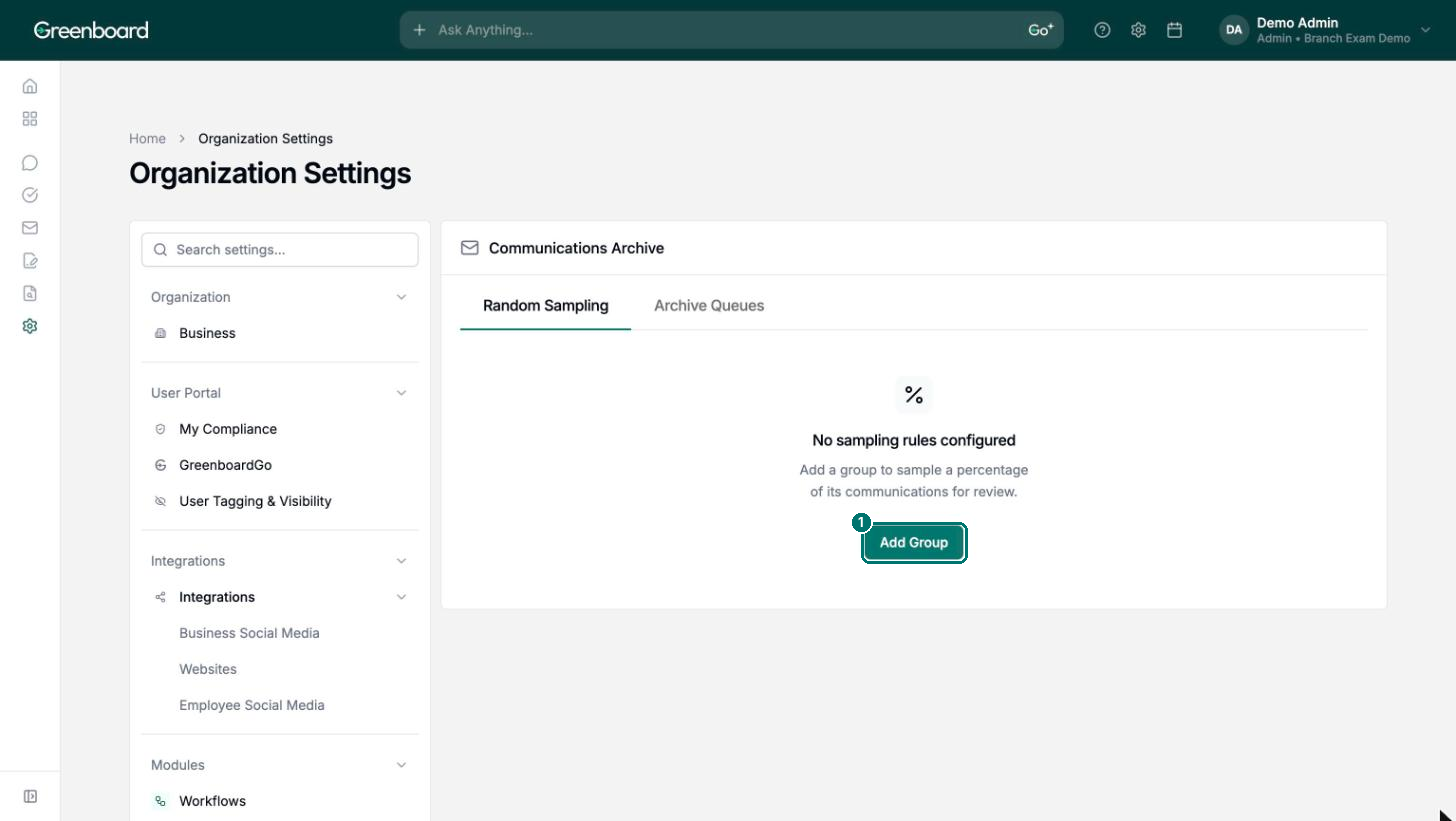
Screenshot 3: The Random Sampling tab with Add Group.
Step 4: Set the sampling rule
In the Add Sampling Rule dialog, search for and select the user group (1). Under Sampling Mode (2), choose User Group to sample a percentage of all communications in the group combined, or Per User to sample a percentage, or a minimum number of communications, for each individual user. Enter the percentage (3), then click Add Group (4).
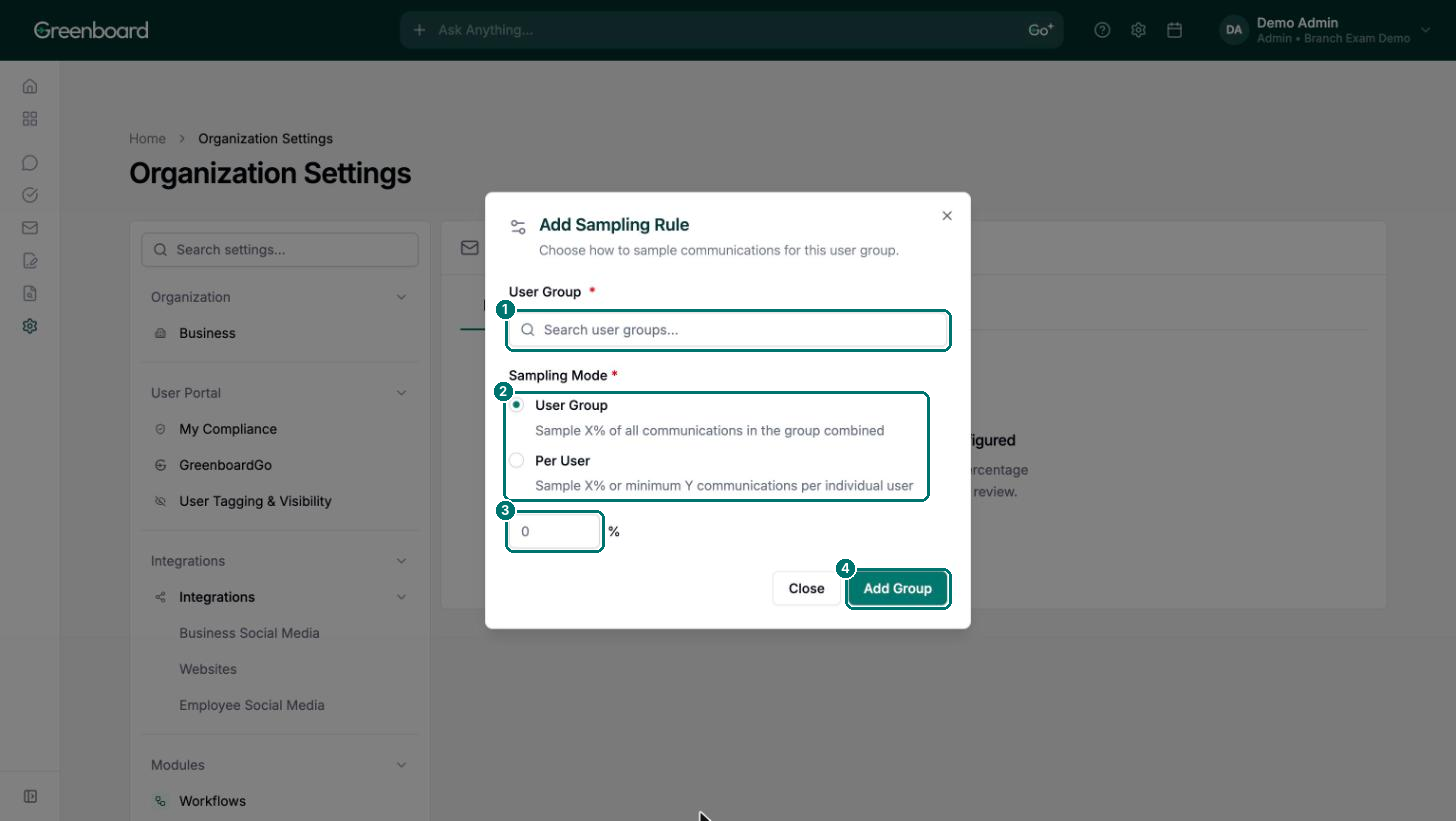
Screenshot 4: The Add Sampling Rule dialog with User Group, Sampling Mode and percentage.
Step 5: Review your archive queues
Click the Archive Queues tab (1) to see the queues set up for your firm. Queues are saved filter sets. They're built in the archive: apply filters, then use Save as Queue. Creating one requires the Communications Archive - Edit Filters permission.
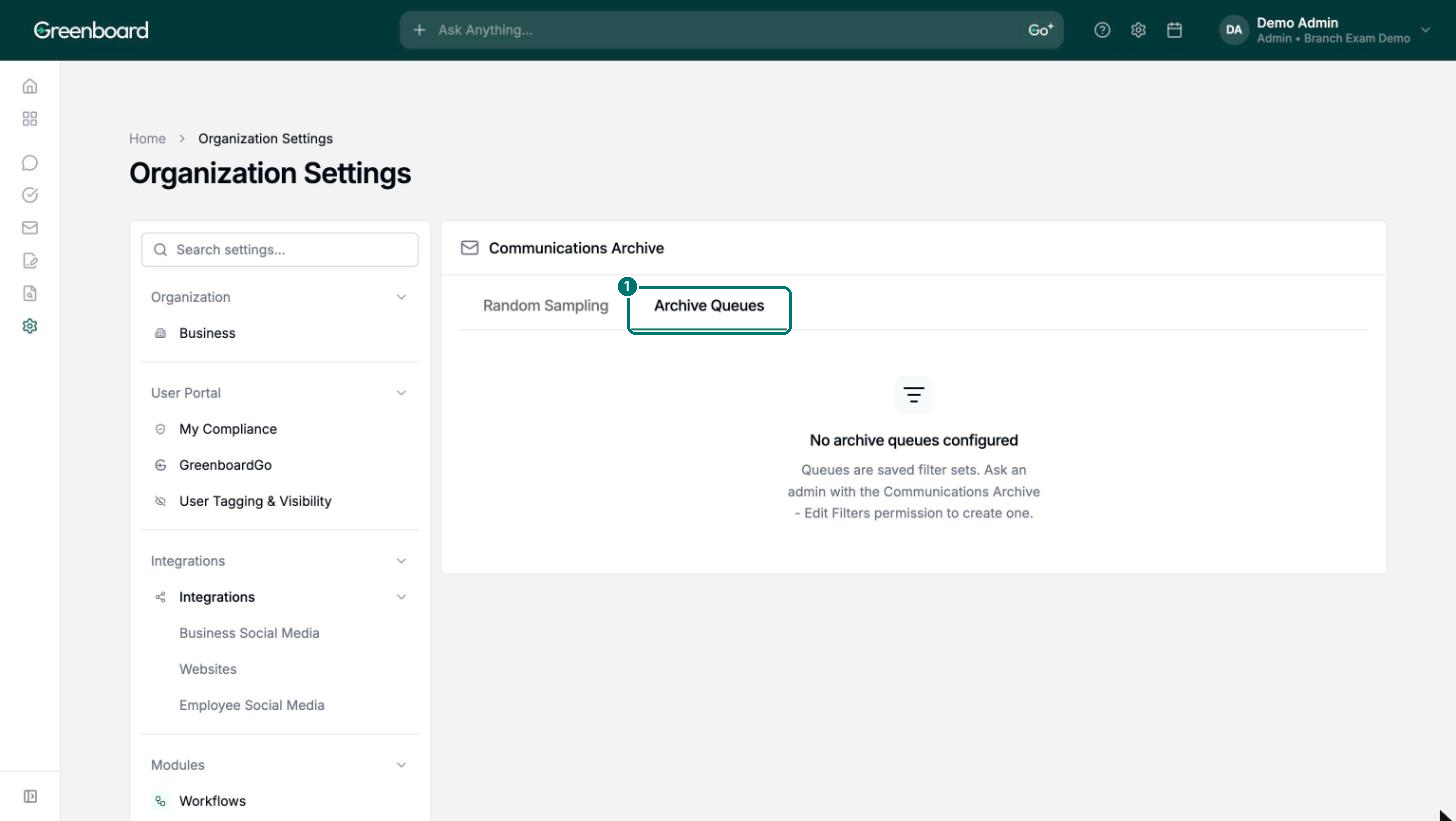
Screenshot 5: The Archive Queues tab with no queues configured.
Once queues are saved, each one is listed with the groups assigned to it. Click the ⋮ beside a group (1) to open its menu, then choose Make Default Queue (2) or Remove Group From Queue (3).
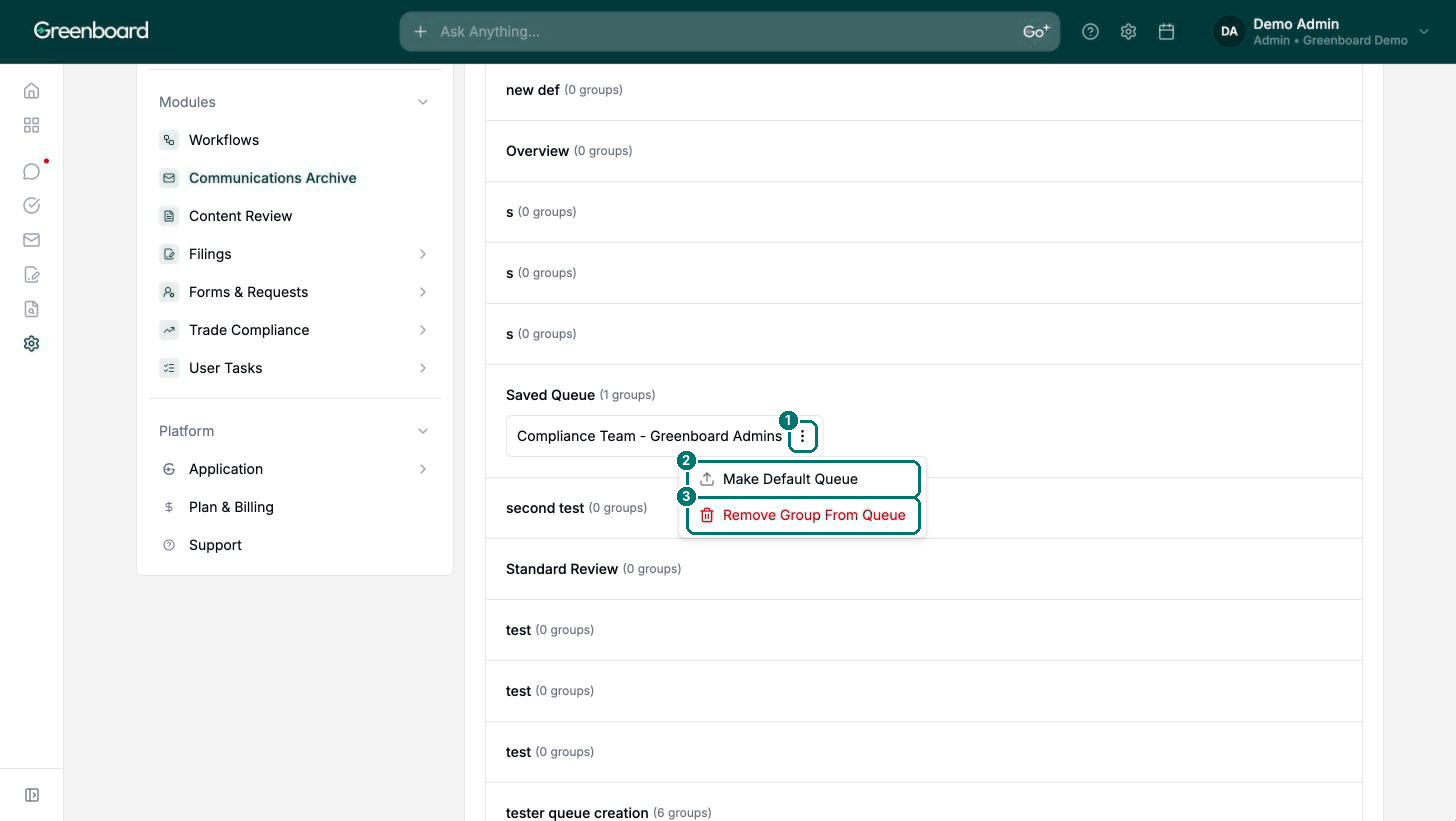
Screenshot 6: A saved queue with a group's menu open, showing Make Default Queue and Remove Group From Queue.
Why This Matters
Supervision reaches past the flags. Random sampling puts a steady share of everyday communications in front of reviewers, so your program covers routine activity as well as what your rules catch.
Sampling fits how your teams work. Sample a whole group as one pool, or set a per-user rate so sampling covers each person individually.
Reviewers start from the same view. Archive queues give everyone a consistent, saved set of filters, so reviews are repeatable and easy to explain in an exam.
Add user groups to random sampling from Organization Settings
Sample by user group or per individual user
Set the sampling percentage for each group
See the archive queues saved for your firm and the groups assigned to each
Questions? Contact [email protected].