MFA Instructions
Last updated: July 29, 2026
Setting Up and Using Multi-Factor Authentication (MFA)
Multi-Factor Authentication (MFA) adds an extra layer of security to your Greenboard account by requiring a verification code in addition to your password when you log in.
Enrolling in MFA for the First Time
If you have never set up MFA before, you'll be prompted to enroll the next time you log into Greenboard.
1) Start by logging in with your email address as usual.
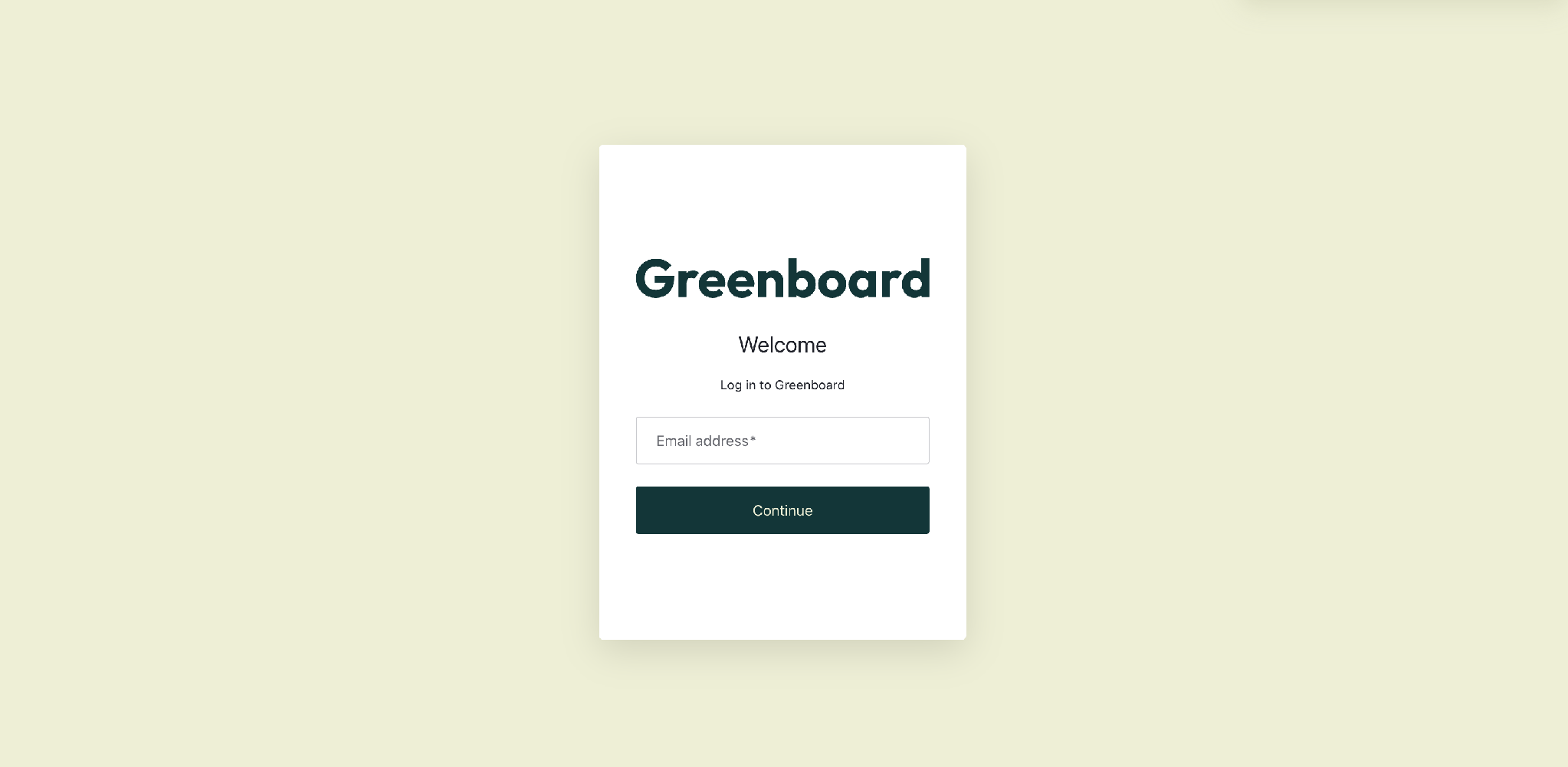
2) If this is your first login, you may be asked to set a new password before continuing.
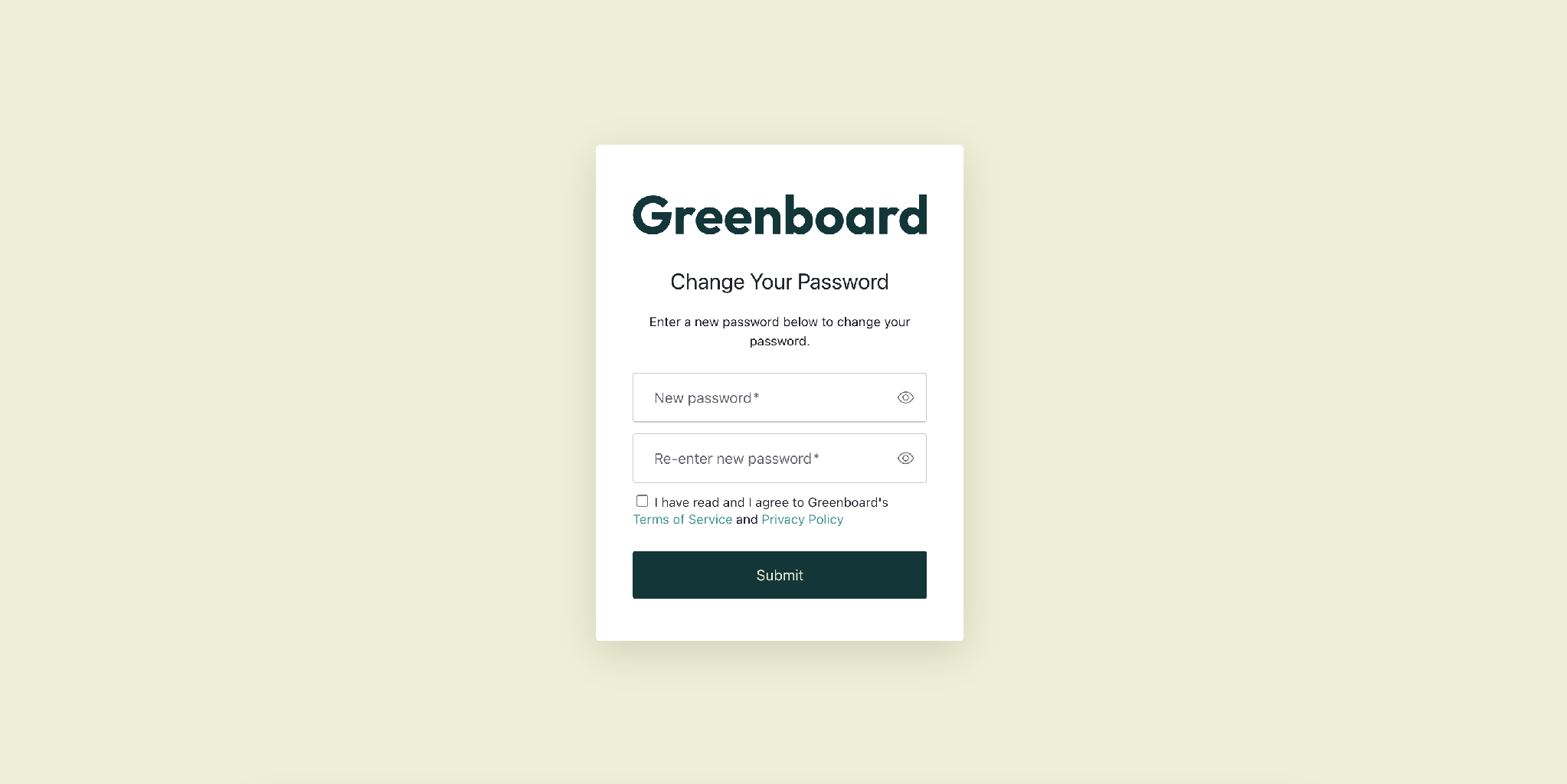
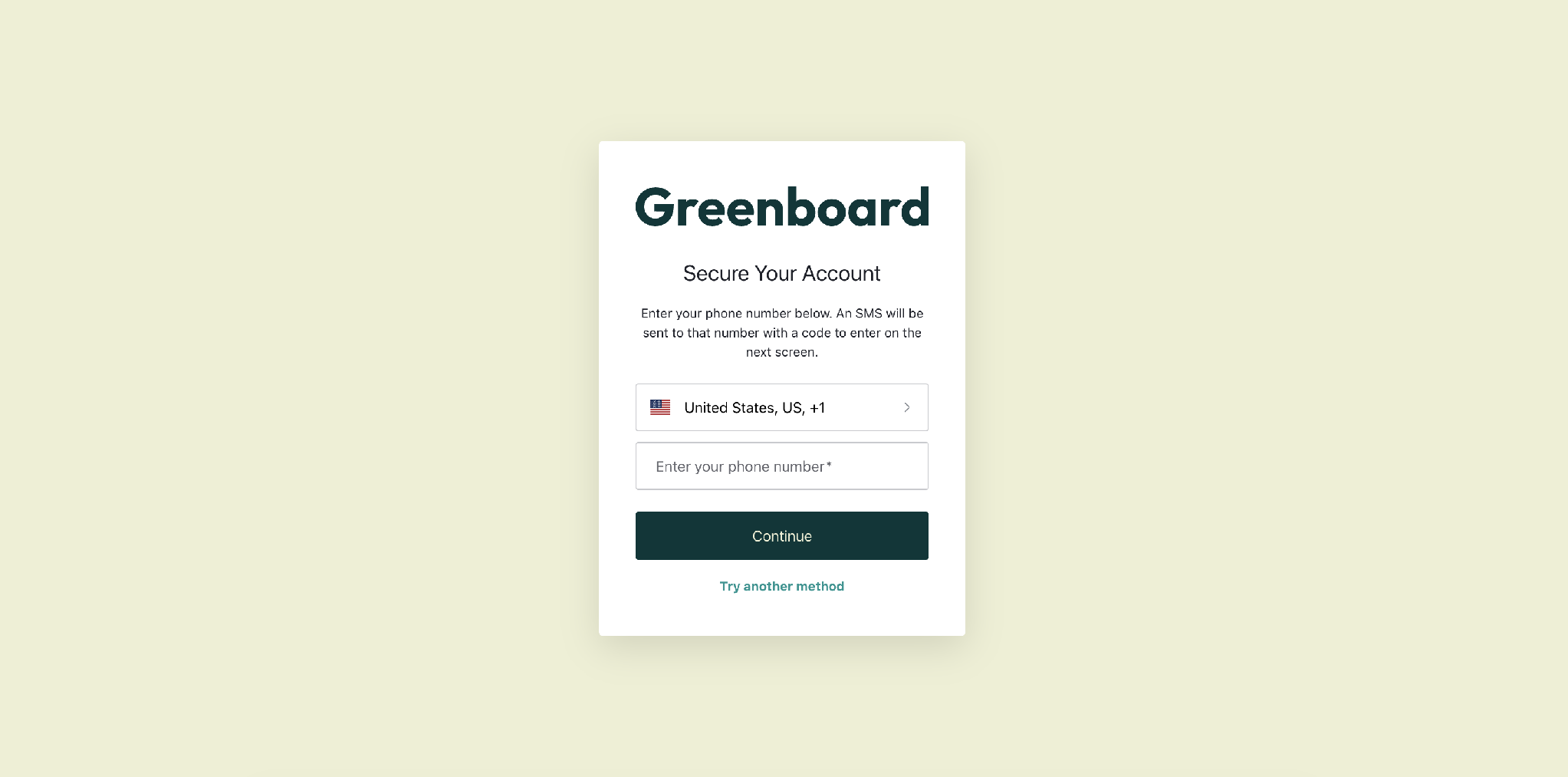
3) Enter a password that meets the listed requirements, confirm it, agree to the Terms of Service and Privacy Policy, and select Submit.
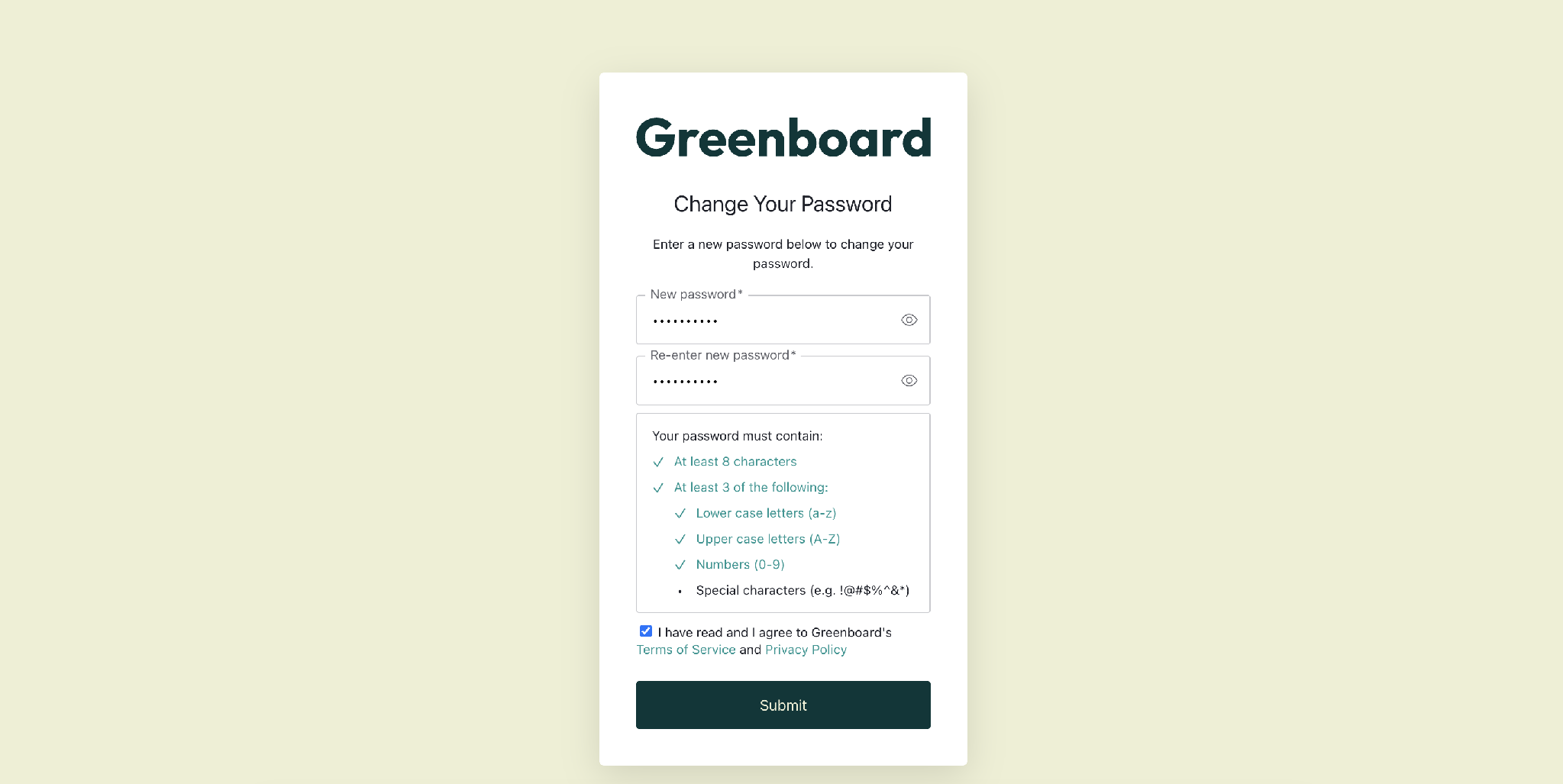
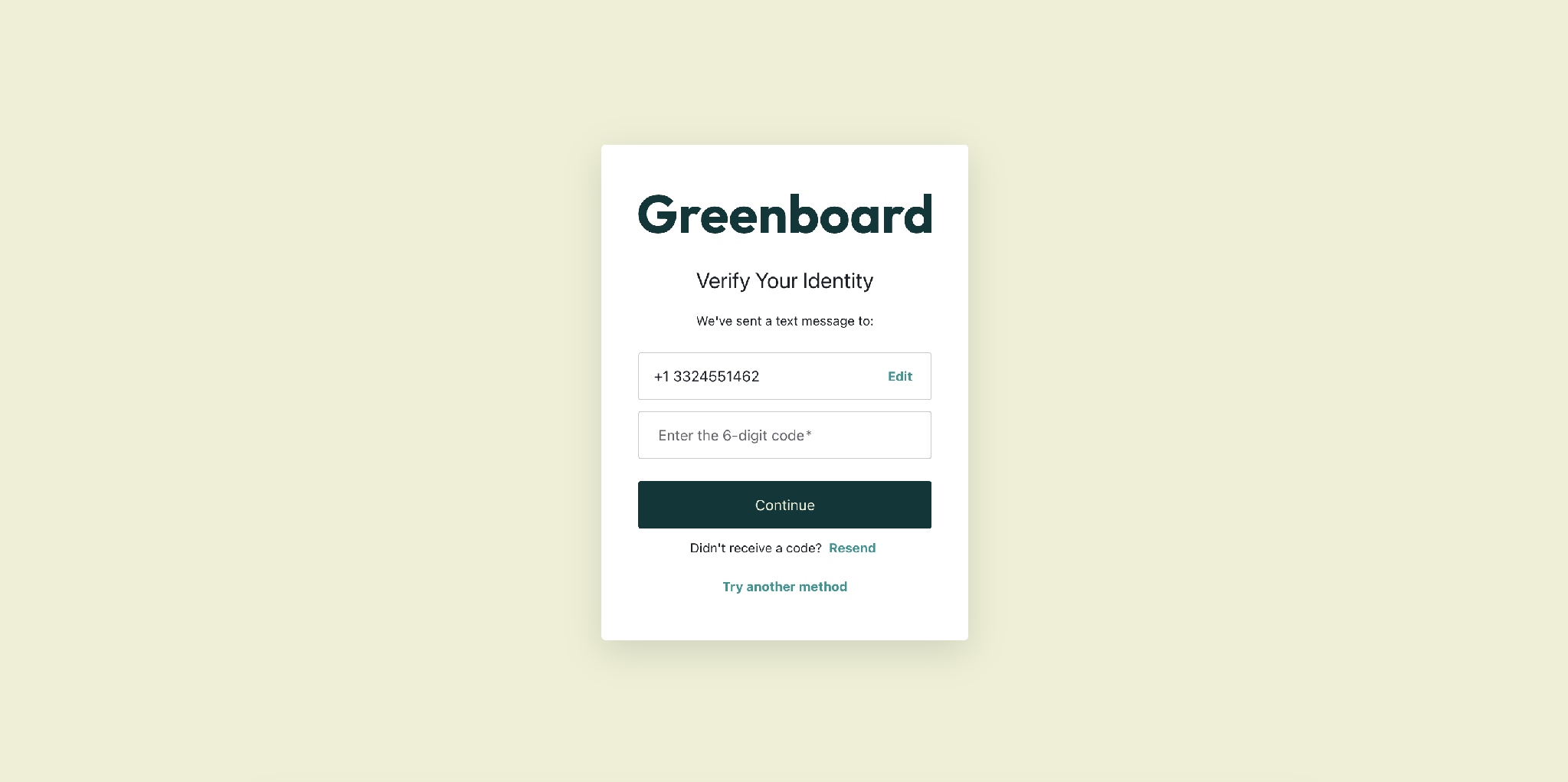
4) Next, you'll be prompted to secure your account with MFA. The default enrollment option is SMS, so you'll receive your verification code by text message.
Follow the on-screen prompts to confirm your phone number and enter the code sent to you to complete enrollment.
If you would prefer to use a separate authentication method, please select "Try another method".
Note: The SMS option does not work for international numbers. You will need to select "Try another method".
You can choose from three verification methods:
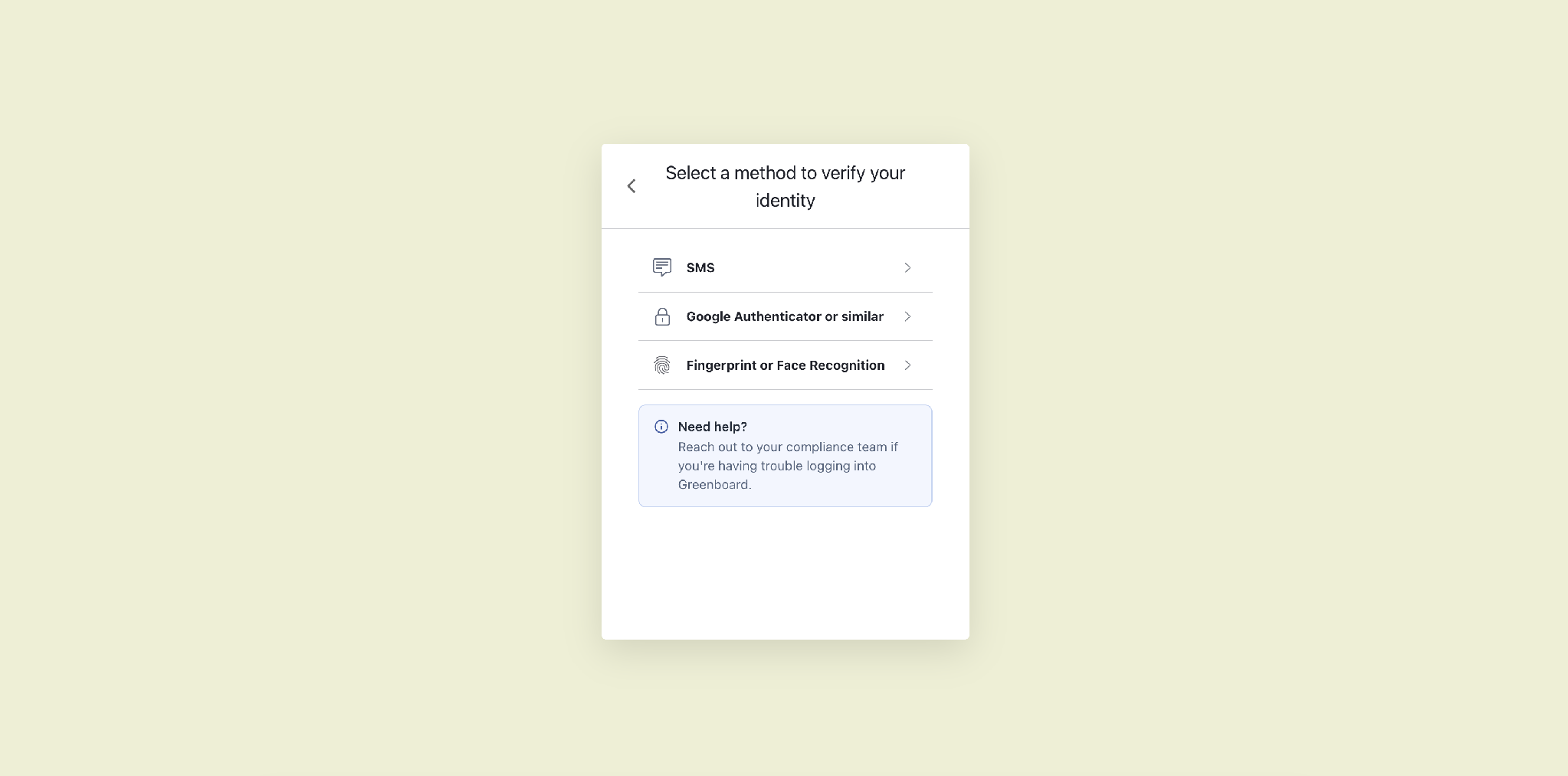
SMS — receive a text message with a code
Google Authenticator or similar — use an authenticator app
Fingerprint or Face Recognition — use your device's built-in biometrics
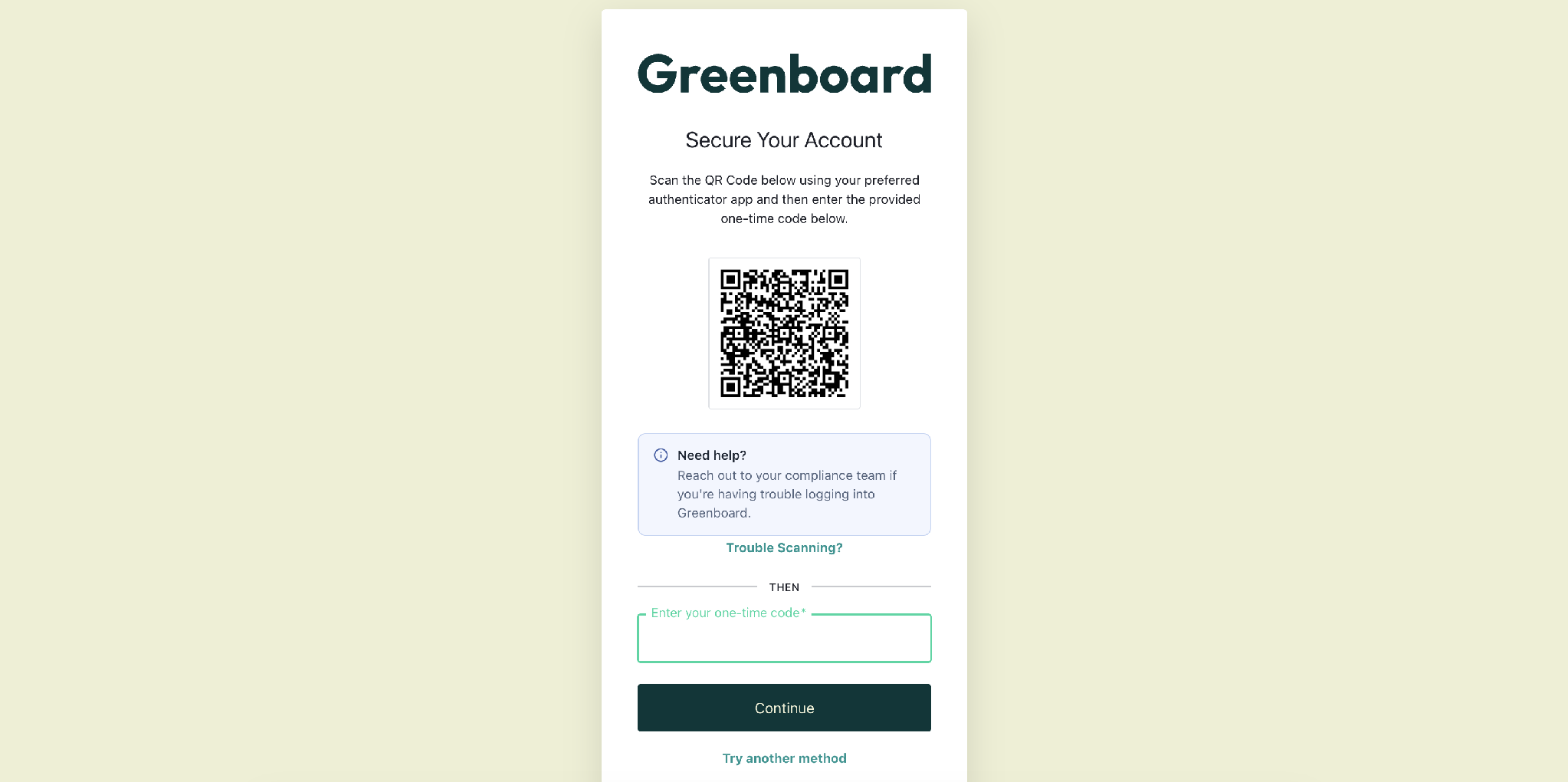
If you choose Google Authenticator or similar, scan the QR code with your preferred authenticator app, then enter the one-time code it generates.
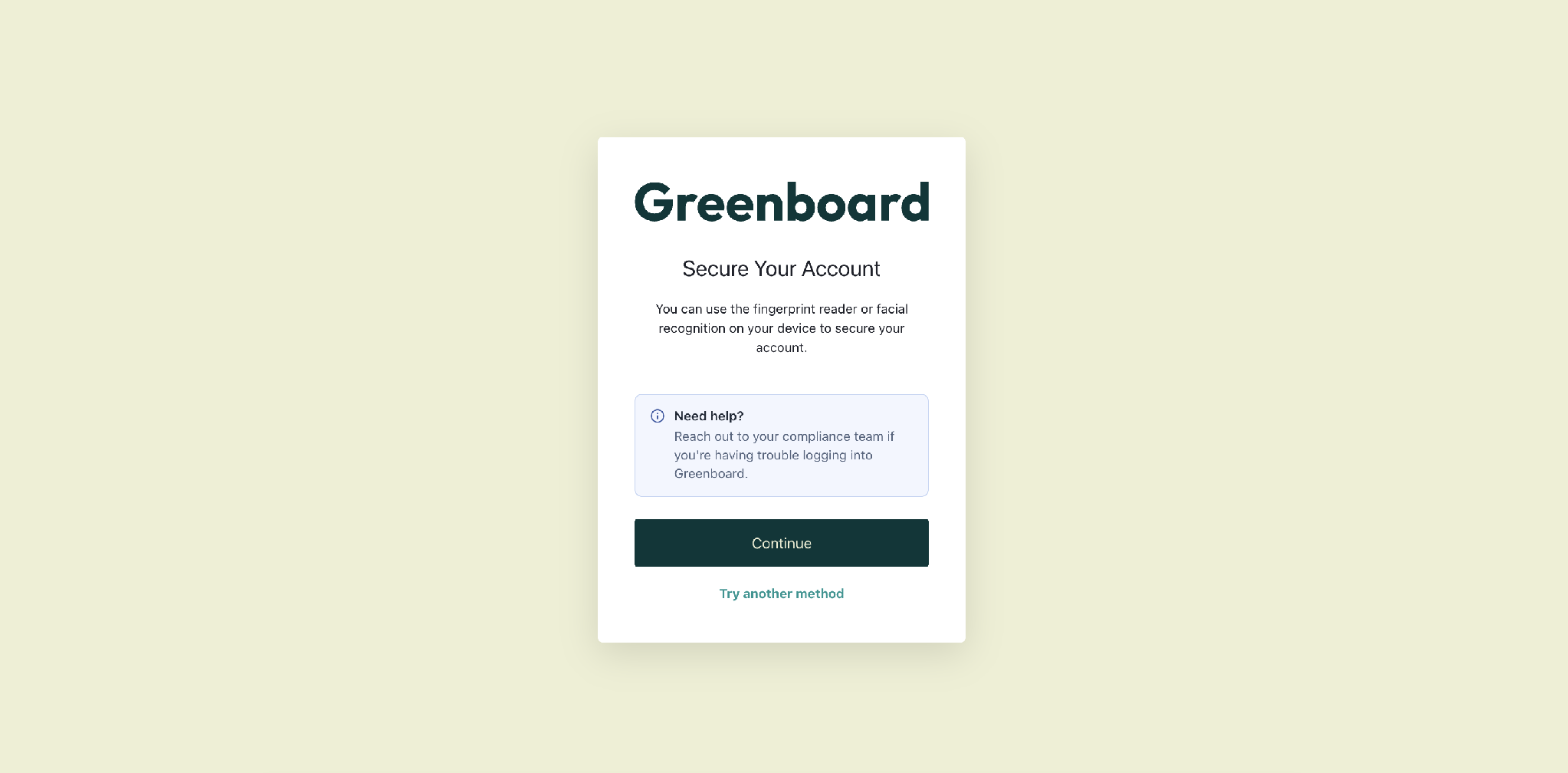
If you choose Fingerprint or Face Recognition, select Continue and follow your device's prompts to confirm using its built-in fingerprint reader or facial recognition.
Once you've completed one of these steps, your MFA enrollment is complete, and you'll be signed in to your account. Enter the code when prompted at login to access your account.
Logging In Once MFA Is Set Up
If you've already completed MFA enrollment, your verification code will be sent using the method you selected during setup.
SMS — a code is sent to your phone via text message, or
Authenticator App — a code is generated in your connected authenticator app
If you no longer have access to your original method, please reach out to your Compliance Team to reset you MFA and try a new method.