Adding Journaling for Microsoft 365
Last updated: November 14, 2025
Prerequisites
Access to Microsoft Purview (in particular, the Exchange (legacy). Link here)
If the link above failed and you require documentation on getting Microsoft Purview set up, please refer to this page
If you are unable to access Microsoft Purview, for the error
Failed to list accounts: Purview first party app service principal not present in the tenant.in particular, please refer to this article
Instructions
Navigate to https://purview.microsoft.com/settings/application-settings/datalifecyclemanagement and click on Data Lifecycle Management > Exchange (legacy). See screenshot for click order if lost
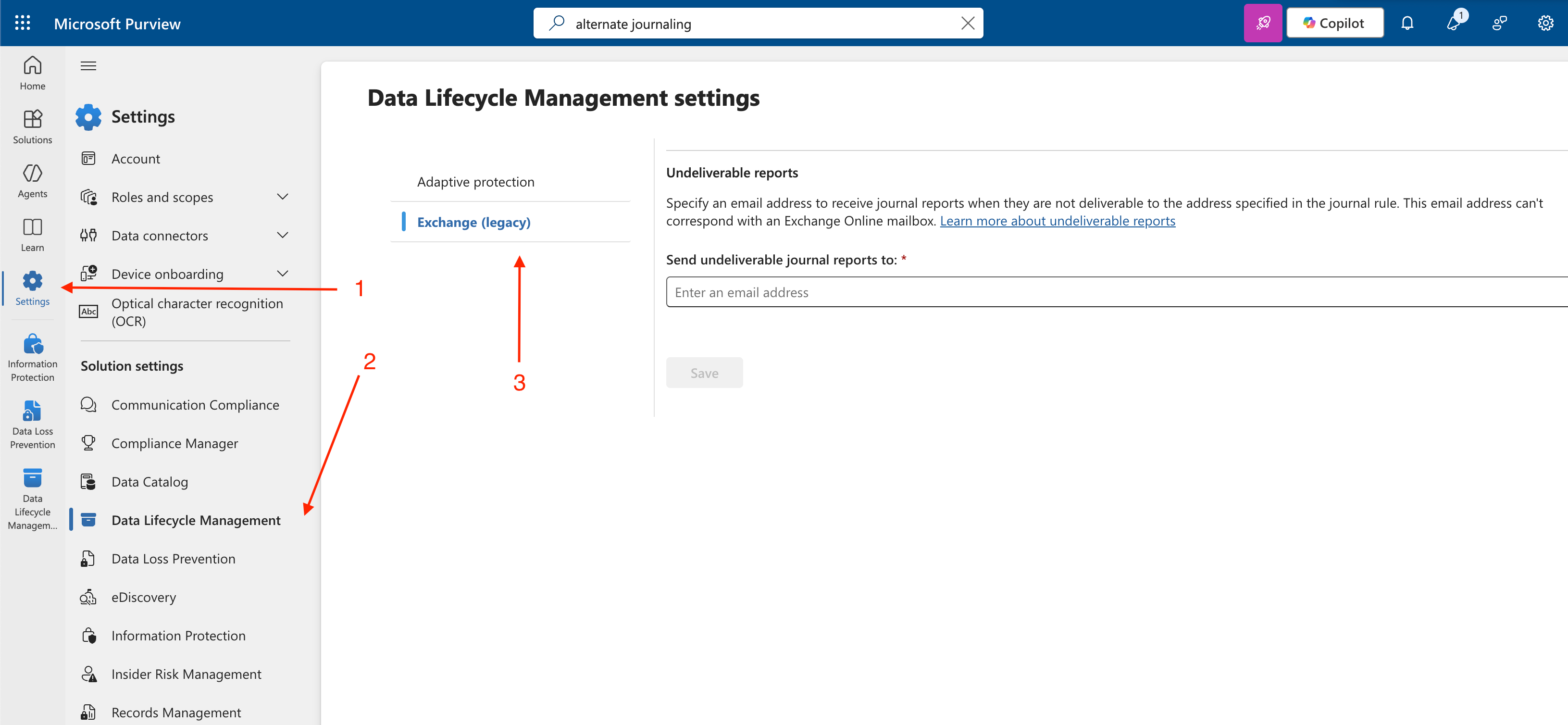
a. If this is already configured, you may skip this
b. If you have an email that you would like to send emails to should journaling fail, please enter that here (Cannot be an Exchange Online Mailbox) Otherwise, please enter the email provided by Greenboard (same as the journaling email)
Navigate to https://purview.microsoft.com/datalifecyclemanagement and click on Exchange (Legacy) > Journal Rules. See screenshot for click order if lost
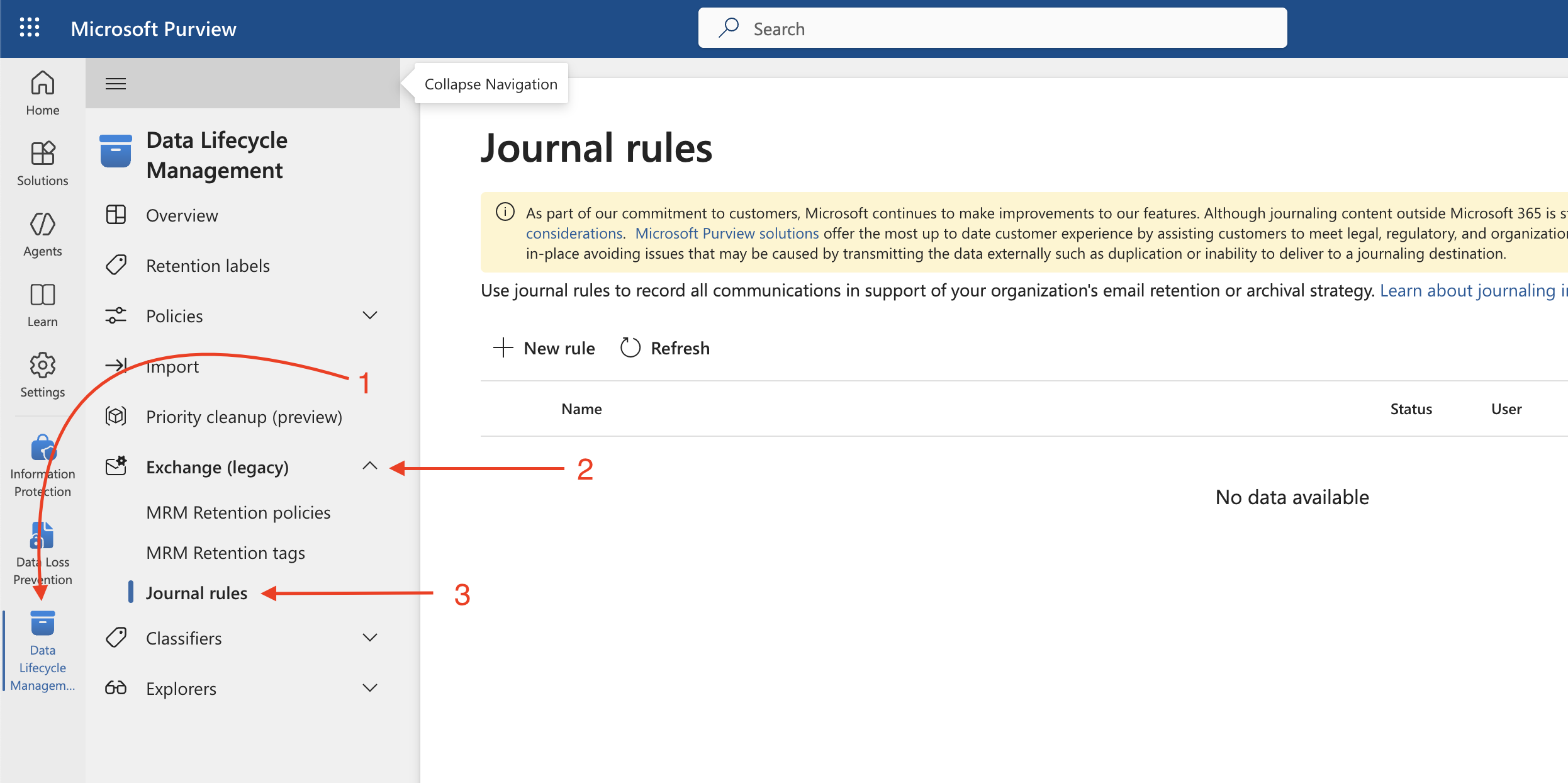
Click New Rule
a. Send journal reports to should be the email provided by Greenboard
b. Journal rule name should be Greenboard Journaling
c. Journal messages sent or received from should be everyone
d. Type of message to journal should be All messages
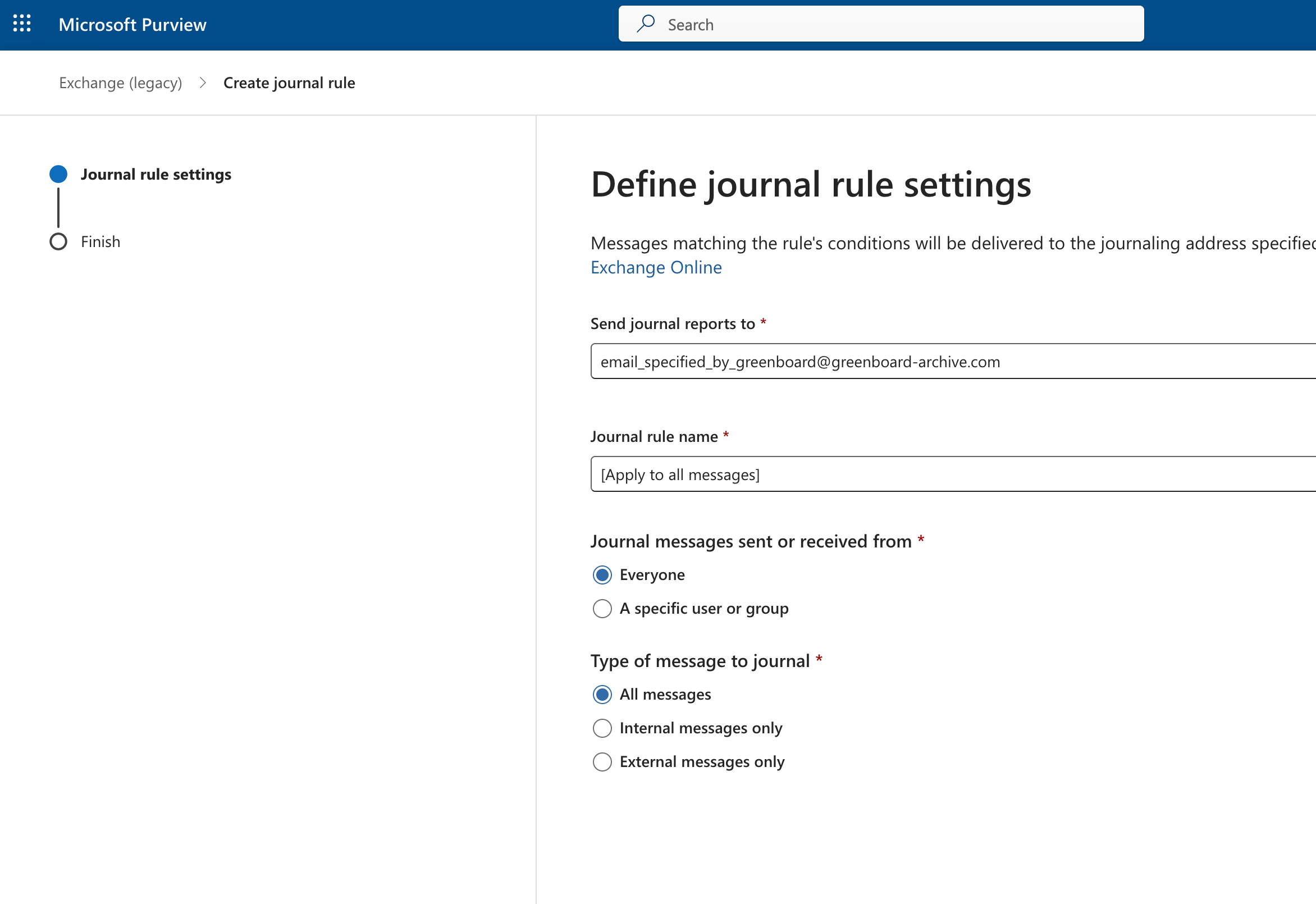
Click next, and then submit
Send an email to [email protected] for final validations.