Greenboard - Okta Workforce SSO Setup Instructions
Last updated: August 19, 2026
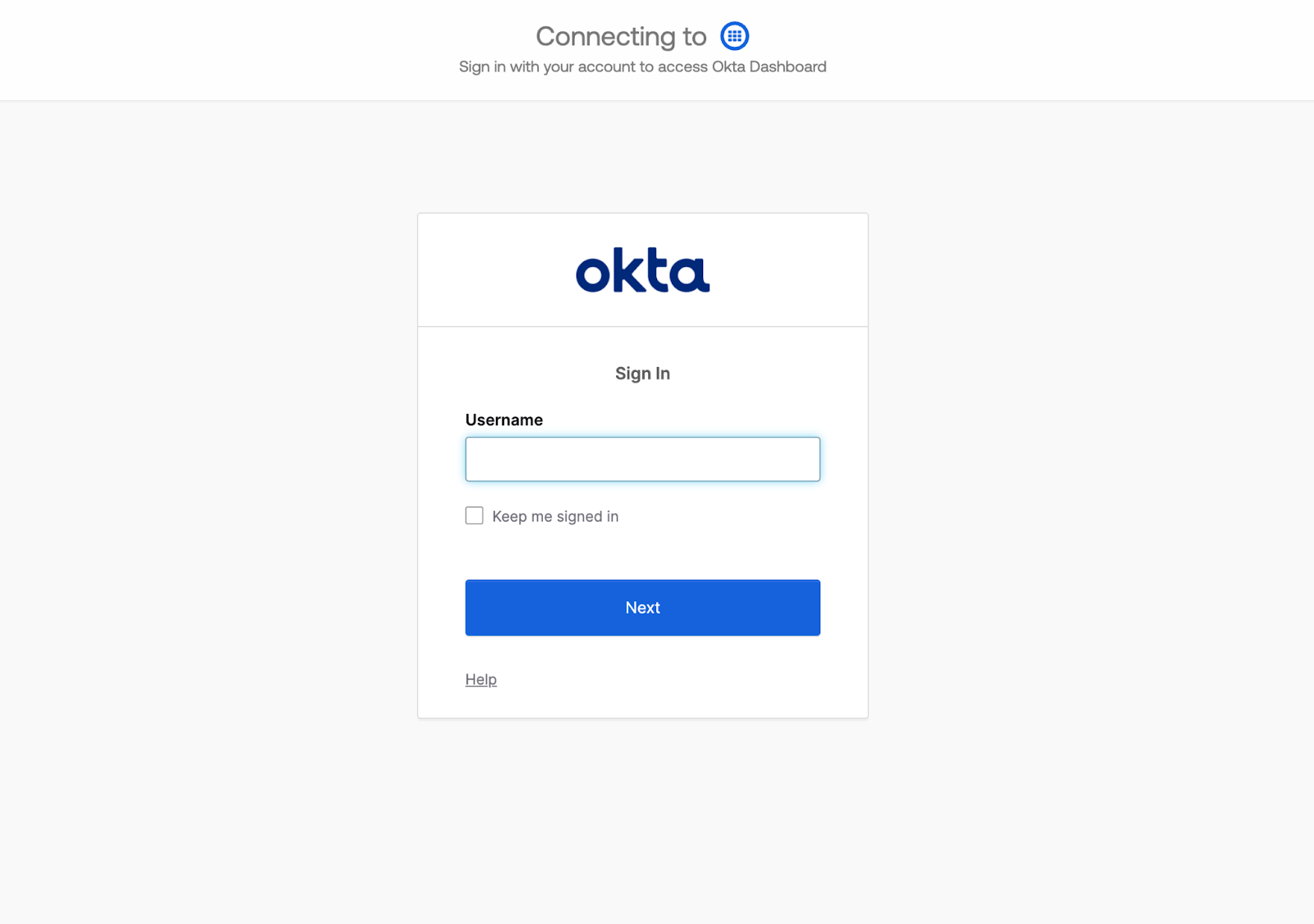
Step 1: Sign-In to Your Okta Workforce Administrator Account
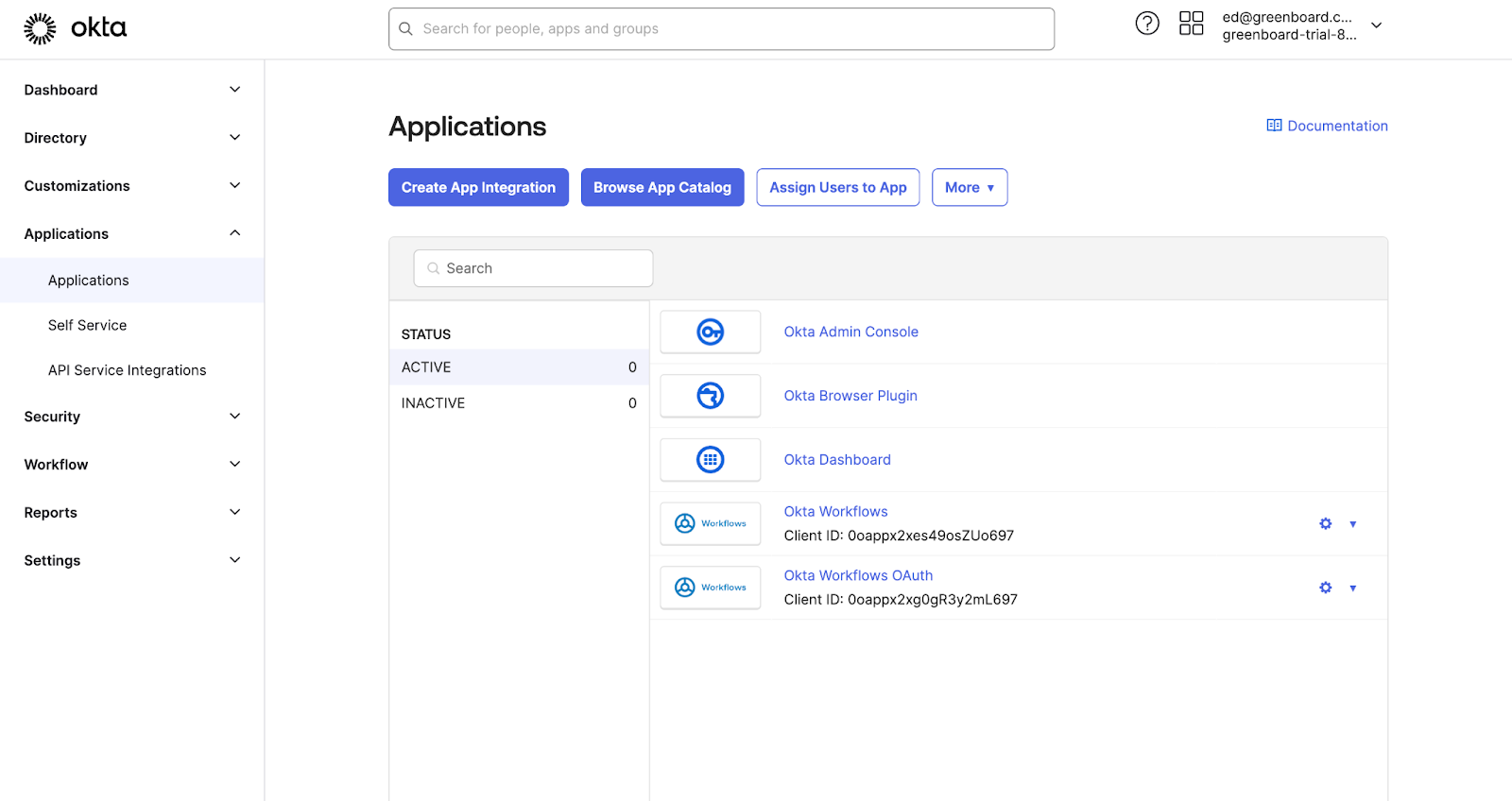
Step 2: Navigate to the Applications Tab and Click the "Create App Integration" button
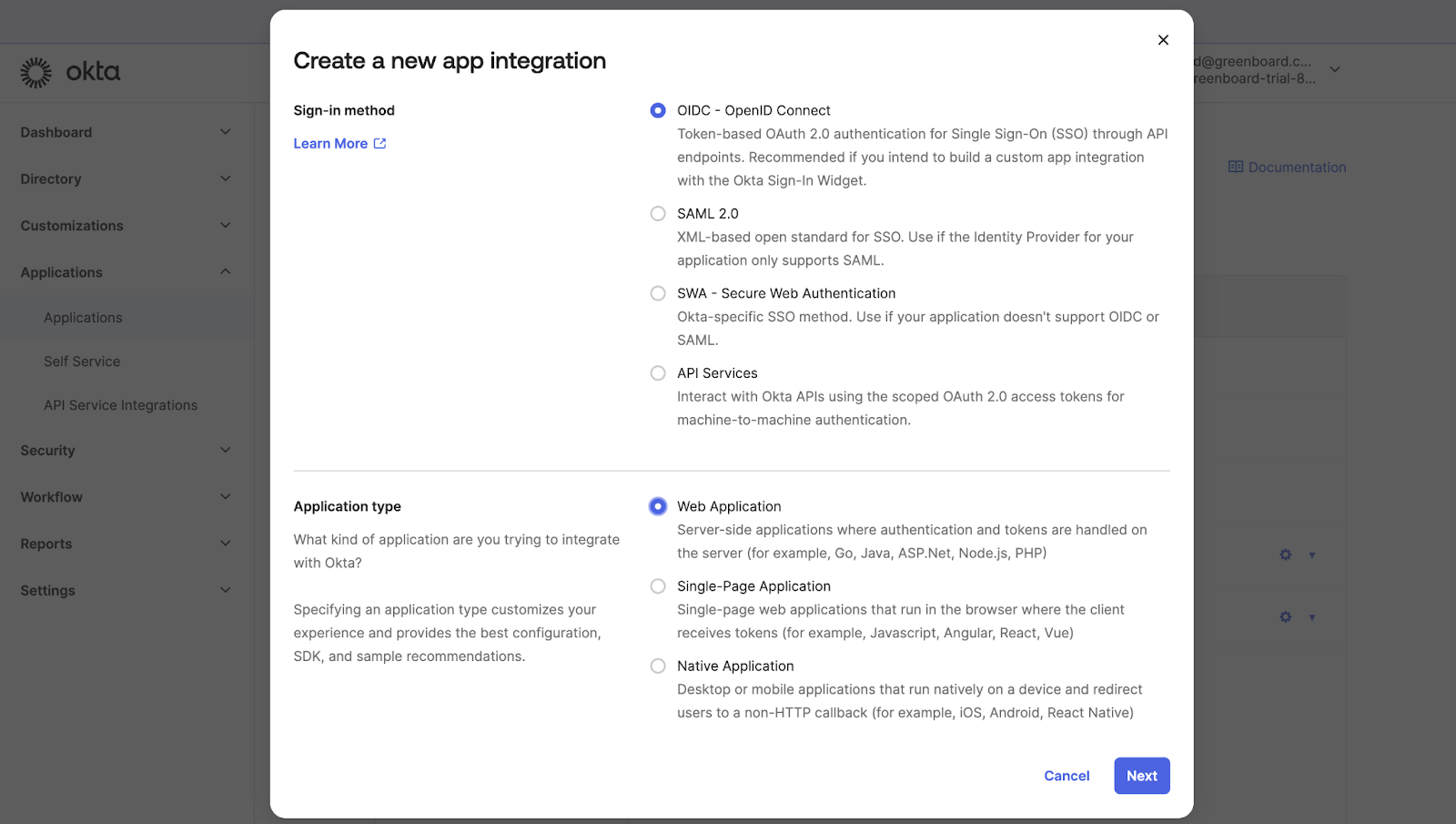
Step 3: Select the "OIDC - OpenID Connect" option for Sign-in method and the "Webb Application" option for the Application type
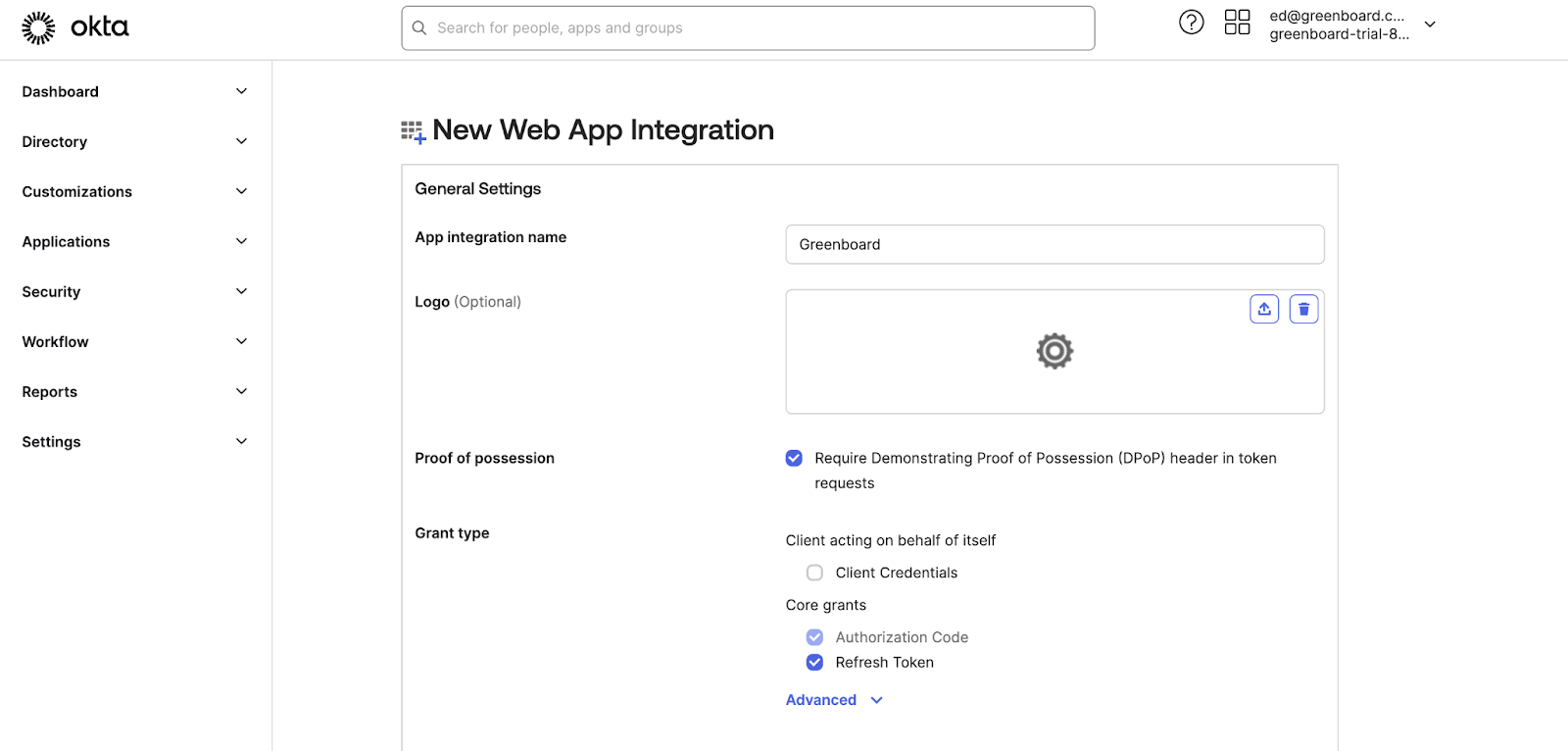
Step 4: Complete the Application Setup Process - General Settings
Application Name: "Greenboard"
Proof of Possession - DPoP: Disabled
Client acting on behalf of itself: Disabled
Core grants: "Authorization Code" and "Refresh Token" Enabled
Step 5: Complete the Application Setup Process - URIs
Sign-In redirect URIs: https://my-greenboard.us.auth0.com/login/callback and https://auth.greenboard.io/login/callback
Sign-Out redirect URIs: None
Step 6: Obtain Your Client ID and Client Secret
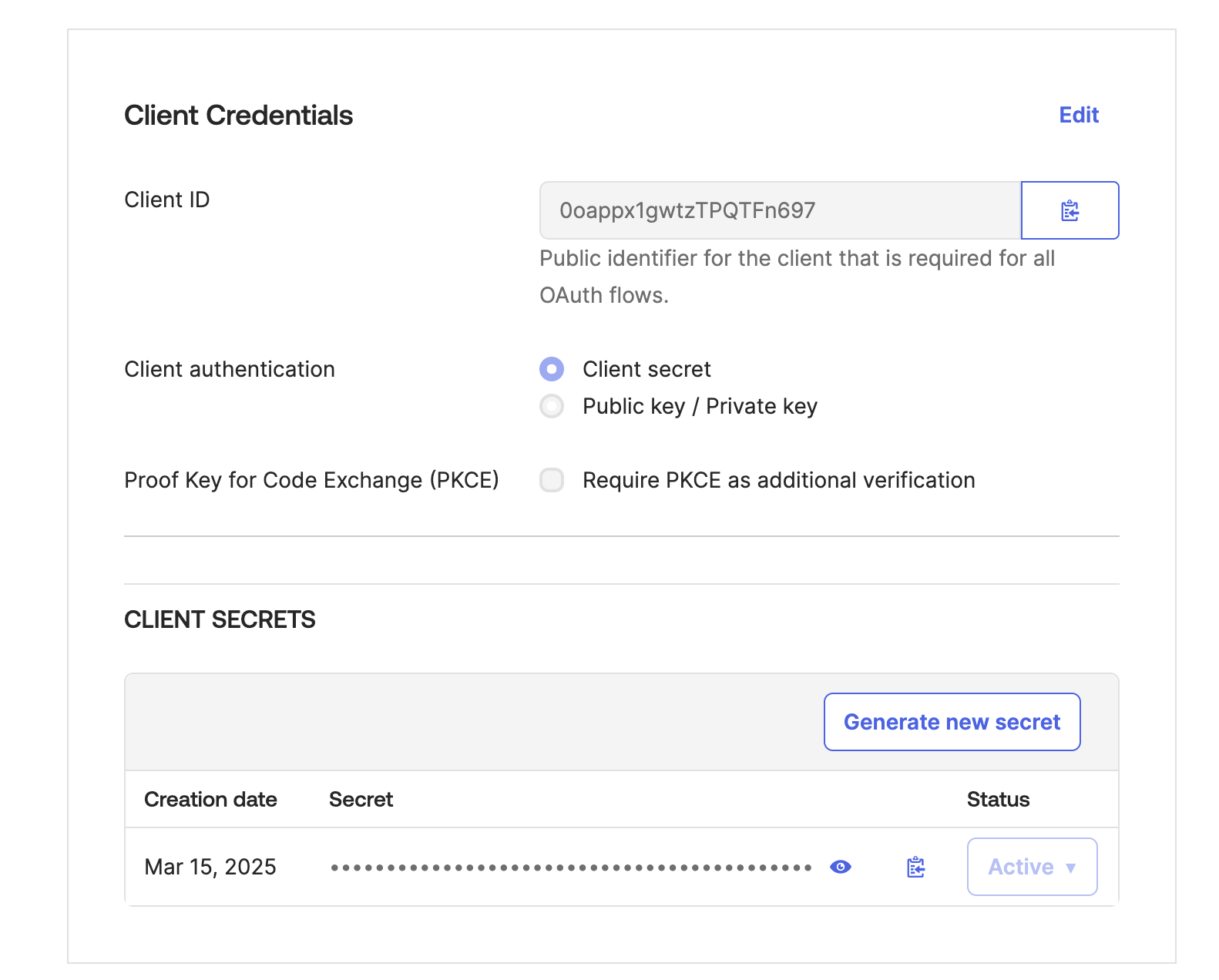
Step 7: Provide Your Client ID and Client Secret to Greenboard
i. Greenboard will provide a secure upload link for you to upload a document with your (1) Client ID, (2) Client Secret, and (3) Okta domain (the URL of your Okta dashboard - e.g., 'https://orgname.okta.com/').
ii. Once you have completed this step, please reach out to your onboarding contact ([email protected]) to let them know it has been completed.
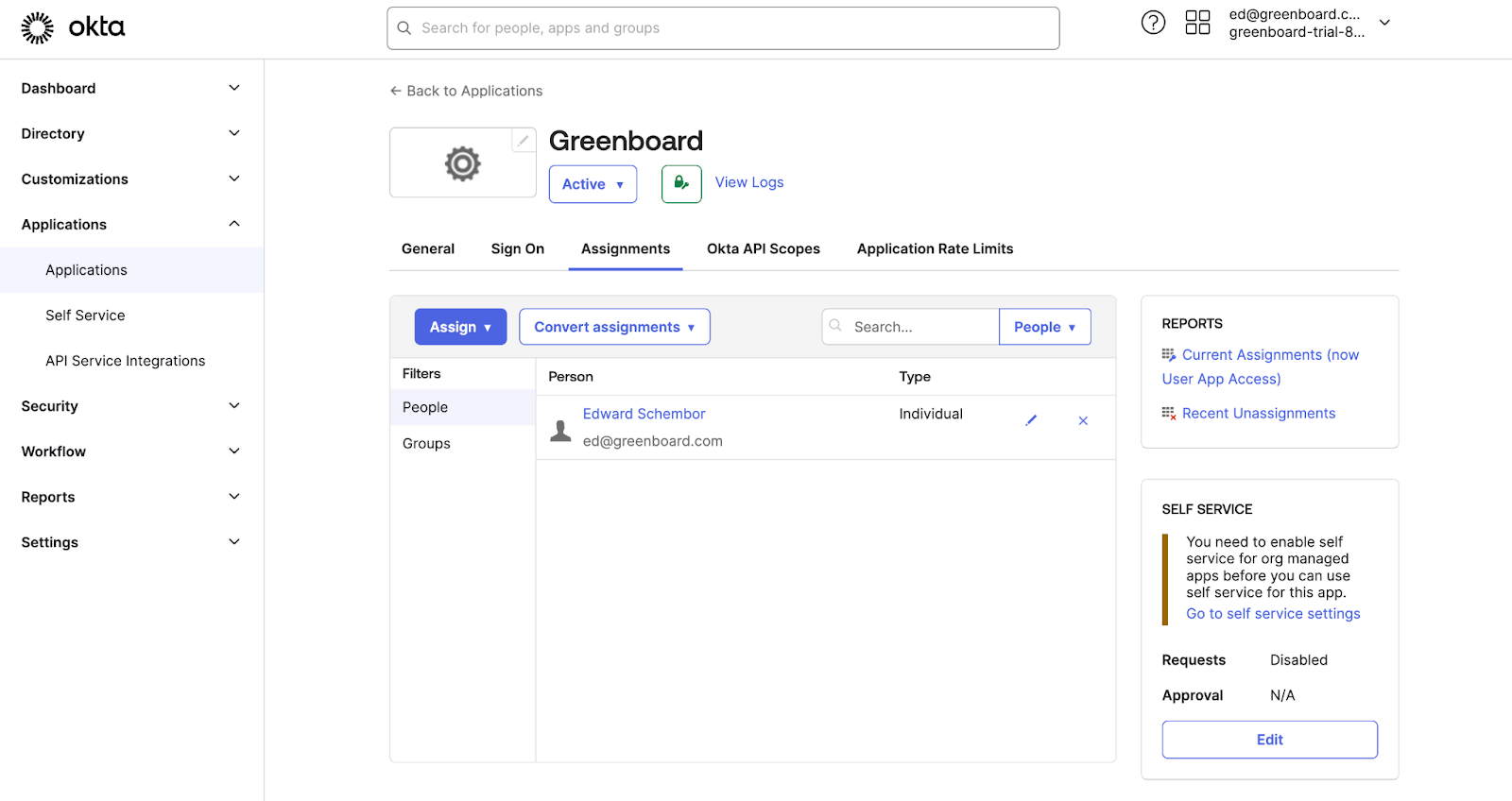
(Optional) Step 8: Assign Users Access to Greenboard
In Okta, you can set which users have access to Greenboard.
By default, all users will be added to the basic Users group in the Greenboard system with minimal permissions. During the onboarding process, your onboarding contact will work with you to set up proper permissions for all users.
Tip: As a best practice, we recommend sharing any credentials with the Greenboard team using an encrypted or secure method where possible.